
Maximo EAM makes it easy to duplicate an existing job plan when you want to reuse the same tasks, labor, materials, and services. But the standard Duplicate Job Plan action also copies the work assets attached to that plan.
That is often the wrong behavior. In many maintenance organizations, a job plan is used as a template for a new asset, location, or item and the work-asset rows need to be cleared so the new plan can be rebuilt intentionally.
Without a custom action, the duplicate process forces a manual cleanup step: open the copied job plan, go to the Work Assets tab, and delete each row one by one. On larger job plans, that becomes repetitive and error-prone.
This article shows how to create a custom Duplicate Job Plan Without Asset action in Maximo.
The problem
The standard Duplicate Job Plan action is helpful for speed, but it always carries over the work assets with the new plan.
That creates a problem when the duplicated job plan is intended to be a template for a different asset, location, or item. The copied plan contains the original asset assignment before you even begin to reassign it.
In other words, the duplicate is created quickly, but the plan still needs cleanup before it is actually usable as a new template.
What you will build
You will add a custom action to the Job Plans application that creates a new job plan from the current one while leaving the Work Assets tab empty.
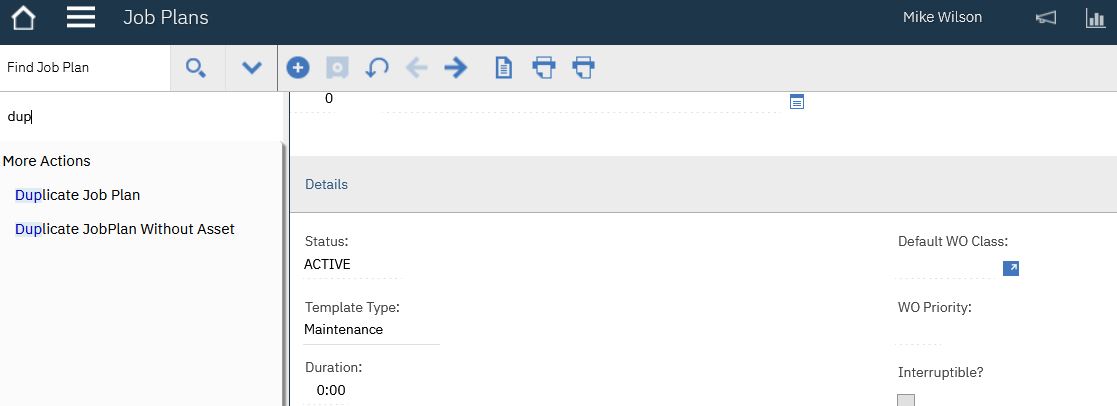
The result is a second menu option alongside the out-of-the-box Duplicate Job Plan:
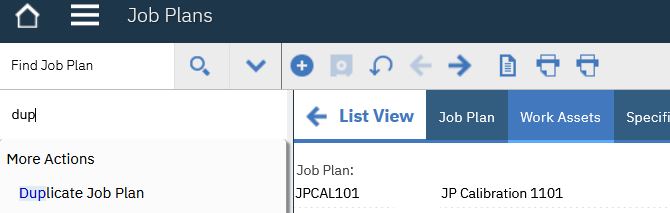
- Duplicate Job Plan
- Duplicate JobPlan Without Asset
This gives users a cleaner option when they need to reuse a job plan as a template without inheriting the original work assets.
Prerequisites
Before you begin, make sure you have:
- Administrative access to Application Designer
- Access to the Security Groups application
- Rights to create or update Automation Scripts
- Familiarity with signature options and Select Action menu configuration
Step 1 — Create a signature option
Open Application Designer and select the Job Plans application.
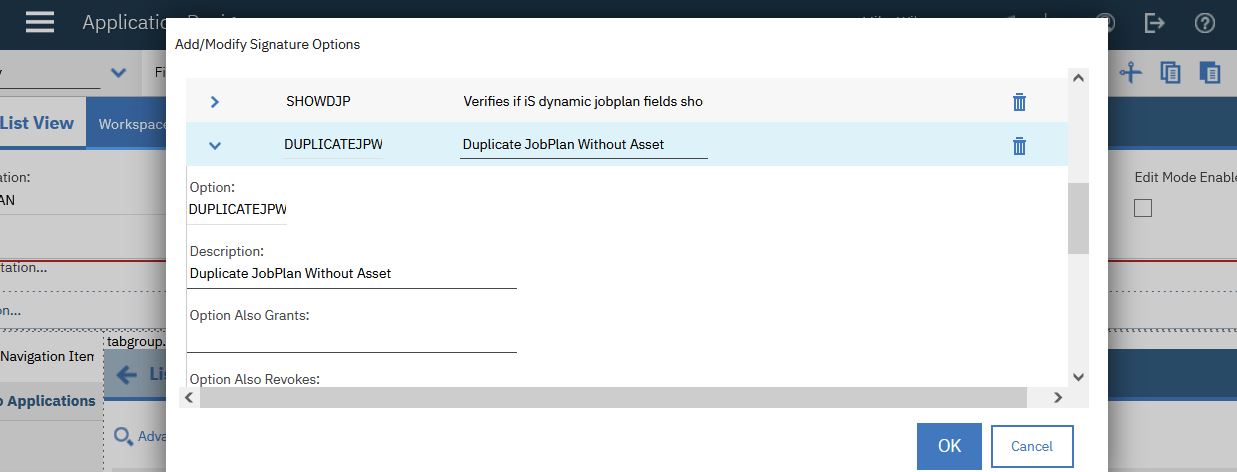
Create a new signature option named:
- DUPLICATEJPWITHOUTASSET
Give it a description such as:
- Duplicate JobPlan Without Asset
In the Advanced Signature Options section, enable the setting that makes it an action invoked by the user in the UI.
This creates the permission and action hook that will later be linked to the visible menu item.
Step 2 — Add the action to the Select Action menu
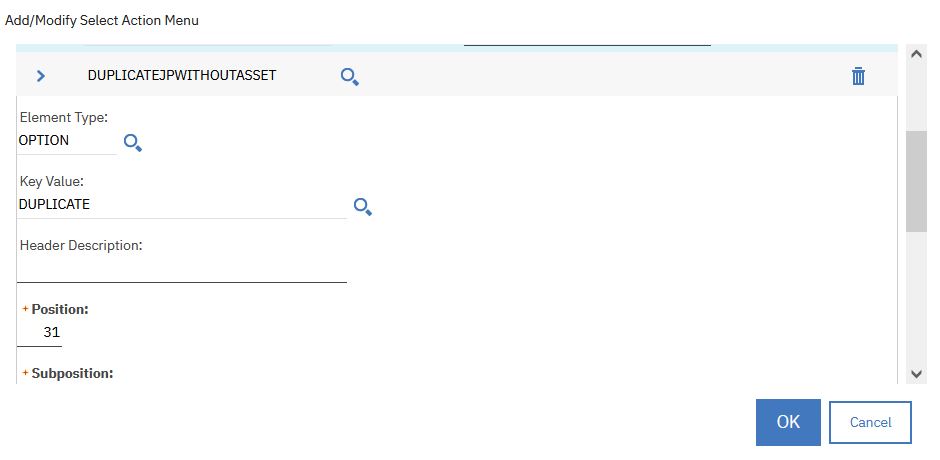
In Application Designer, add a new Select Action menu item for the Job Plans application.
Set:
- Element Type: OPTION
- Key Value: DUPLICATEJPWITHOUTASSET
The Key Value must match the signature option exactly. If the names do not match, the menu entry will not be wired to the action properly.
Place the entry in a position next to the standard Duplicate Job Plan action so it is easy to find in the More Actions menu.
Step 3 — Grant access in the security group
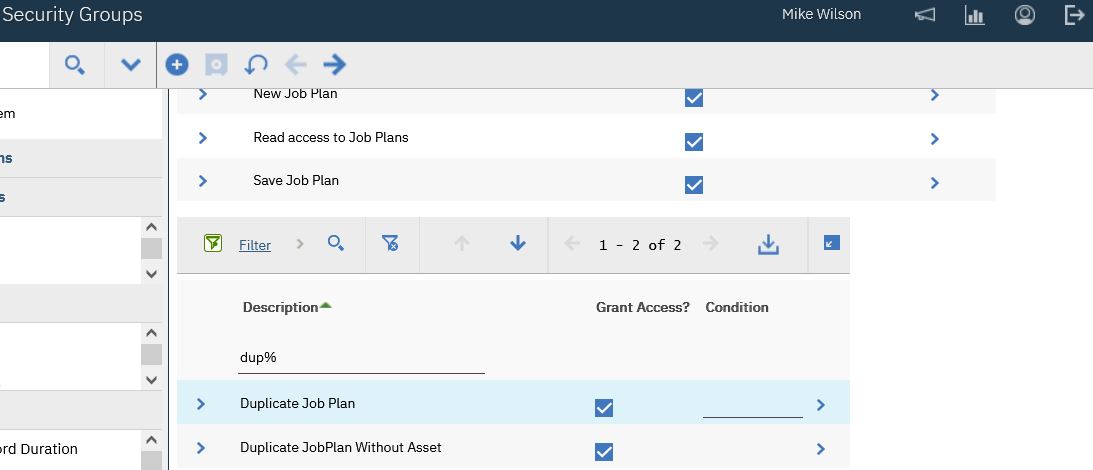
Open the Security Groups application and select the group that should have access to the action.
Under the Applications tab, choose Job Plans and locate the new signature option.
Check Grant Access and save the changes.
This ensures the custom action is visible to the right users and can be invoked from the UI.
Step 4 — Create the automation script
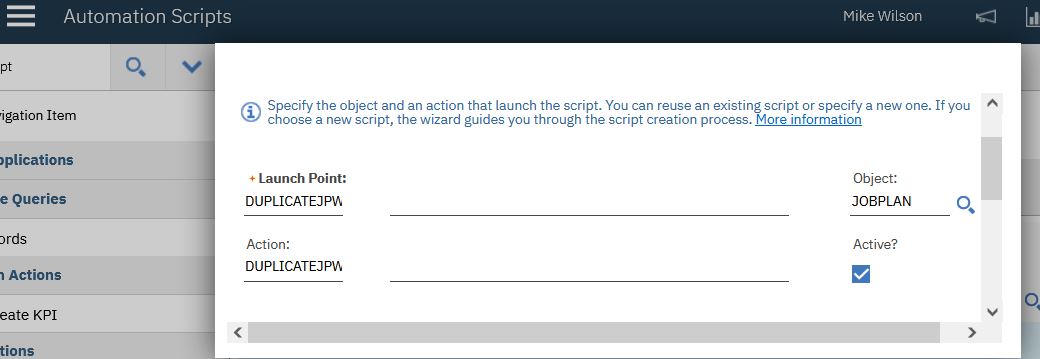
Create an automation script with an Action launch point.
Use the following settings:
- Launch Point: DUPLICATEJPWITHOUTASSET
- Action: DUPLICATEJPWITHOUTASSET
- Object: JOBPLAN
- Active: Yes
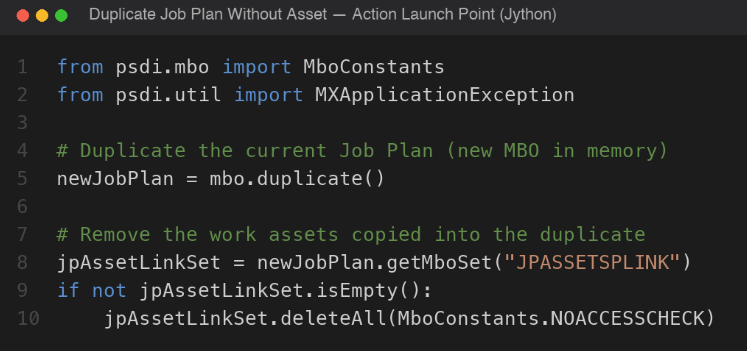
The script should:
- Duplicate the selected job plan
- Remove the associated work-asset rows from the duplicate
- Refresh the UI so the new job plan is the current record
- Surface a clean error message if something goes wrong
In Maximo, the important part is removing the rows from the work-asset relationship set, commonly represented as JPASSETSPLINK. That is the data that carries the original asset assignment from the source plan.
The complete script should also wrap the logic in a try/except block and call service.error(...) when a failure occurs. That gives users a clearer message and keeps the action easier to support.
A minimal pattern looks like this:
Result
Once the signature option, menu item, security access, and automation script are configured, users can open the Job Plans application, select a job plan, and use More Actions.
The standard Duplicate Job Plan option remains available, but now there is a second option named Duplicate JobPlan Without Asset.
When the new action is run, the duplicated job plan opens without the original work assets. The Work Assets tab is empty and ready for a new assignment, whether that is a different asset, location, or item.
Why this is valuable
This is a small customization, but it removes a repetitive manual cleanup task and makes job-plan templates much easier to reuse.
For organizations that rely on standardized job plans across multiple assets, the value is immediate:
- faster template creation
- fewer cleanup errors
- cleaner asset reassignment
- less manual administrative effort
Summary
By combining a signature option, a Select Action menu entry, security access, and an action launch point script, you can extend Maximo’s Job Plans application with a Duplicate Without Asset action.
It is a simple solution to a very common job-planning problem and one that can dramatically reduce the friction of reusing job plans across multiple operating contexts.